<?xml version="1.0" encoding="utf-8"?><feed xmlns="http://www.w3.org/2005/Atom" ><generator uri="https://jekyllrb.com/" version="3.10.0">Jekyll</generator><link href="https://finesine.com/feed.xml" rel="self" type="application/atom+xml" /><link href="https://finesine.com/" rel="alternate" type="text/html" /><updated>2026-10-29T11:04:01-05:00</updated><id>https://finesine.com/feed.xml</id><title type="html">FineSine</title><subtitle>A wireless networking blog...</subtitle><author><name>Matt Frederick</name></author><entry><title type="html">How Your App and Android Version Change the Way You Roam</title><link href="https://finesine.com/2026/10/29/how-your-app-and-android-version-change-wifi-roaming/" rel="alternate" type="text/html" title="How Your App and Android Version Change the Way You Roam" /><published>2026-10-29T00:00:00-05:00</published><updated>2026-10-29T00:00:00-05:00</updated><id>https://finesine.com/2026/10/29/how-your-app-and-android-version-change-wifi-roaming</id><content type="html" xml:base="https://finesine.com/2026/10/29/how-your-app-and-android-version-change-wifi-roaming/"><![CDATA[<p>I was recently doing some roaming testing on WPA3 and uncovered some useful visualizations on how OS version and application types affect roaming. It has been common knowledge in the WiFi industry that clients have a lot of say in how they roam. These tests really uncovered how true that statement is - also, how little changes in how the device is configured or even <em>how it’s being used</em> can have big changes to roaming behavior.</p>

<h2 id="the-test">The test</h2>

<p>I used one Zebra TC53 and changed only two things: the Android version (11 or 14) and what the device was doing (a regular shopping app or a VoIP call). That gave me four scenarios:</p>

<ul>
  <li>Android 11 using a regular shopping app</li>
  <li>Android 11 on a VoIP call</li>
  <li>Android 14 using a regular shopping app</li>
  <li>Android 14 on a VoIP call</li>
</ul>

<p>Everything else stayed the same:</p>

<ul>
  <li><strong>Device:</strong> the exact same Zebra TC53</li>
  <li><strong>Location:</strong> the exact same grocery store, which has high AP density</li>
  <li><strong>Path:</strong> I walked the exact same path every time</li>
  <li><strong>Applications:</strong> the exact same apps every time</li>
  <li><strong>Network:</strong> WPA3 with EAP-TLS, and 802.11k/r/v enabled on 5 GHz</li>
</ul>

<p>Each run is a capture of the client’s uplink frames, so the chart shows the client’s RSSI over time, the probing it did before roaming, and every roam event. All device and AP identifiers are anonymized.</p>

<h2 id="explore-the-data">Explore the data</h2>

<p>Use the dropdown to switch between the four scenarios. Hover over the chart to inspect individual samples, probes and roams. If the embed doesn’t work for you, <a href="/assets/labs/wifi-roaming-lab.html">open it in its own tab</a>, or skip down to the <a href="#appendix-the-four-runs">screenshots in the appendix</a>.</p>

<iframe id="roaming-lab" src="/assets/labs/wifi-roaming-lab.html" title="Wi-Fi Roaming Lab: interactive RSSI and roam timeline for four Zebra TC53 test runs" style="width: 100%; height: 2100px; border: 1px solid #ccc;" loading="lazy"></iframe>
<script>
  (function () {
    var f = document.getElementById('roaming-lab');
    function fit() {
      try { f.style.height = f.contentDocument.documentElement.scrollHeight + 'px'; } catch (e) {}
    }
    f.addEventListener('load', function () {
      fit();
      try { new ResizeObserver(fit).observe(f.contentDocument.body); } catch (e) {}
    });
  })();
</script>

<h2 id="what-i-saw">What I saw</h2>

<h3 id="android-11-shopping-app">Android 11, shopping app</h3>

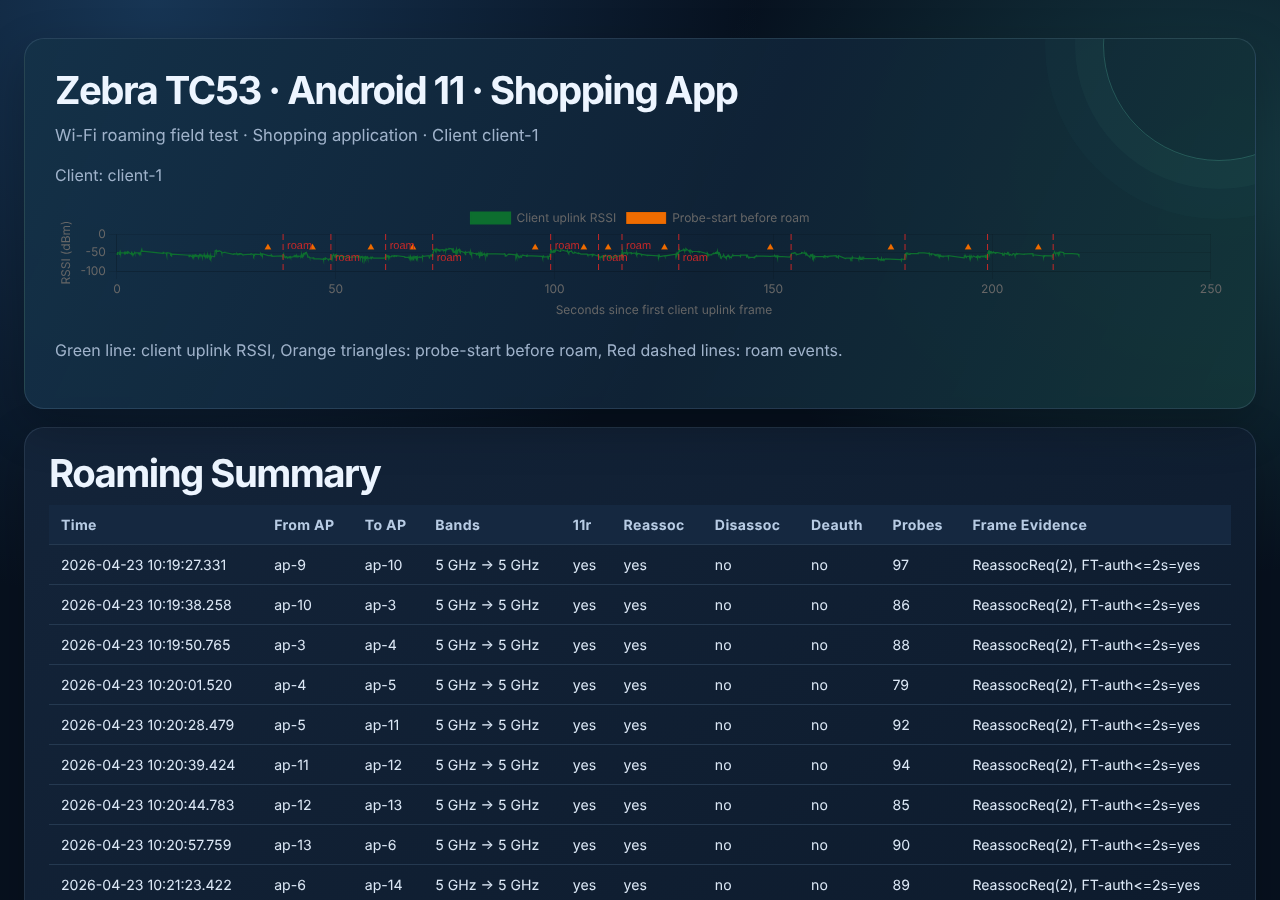
<p>This one looks like a textbook roam. Twelve roams in about 220 seconds, all 5 GHz to 5 GHz, and every one used 802.11r with a reassociation. No disassociations and no deauths. The capture shows the Fast Transition authentication frame within two seconds on every roam.</p>

<p>The client was also very active before each roam. The probes column shows between 79 and 103 probes per roam, around 90 on average.</p>

<h3 id="android-14-shopping-app">Android 14, shopping app</h3>

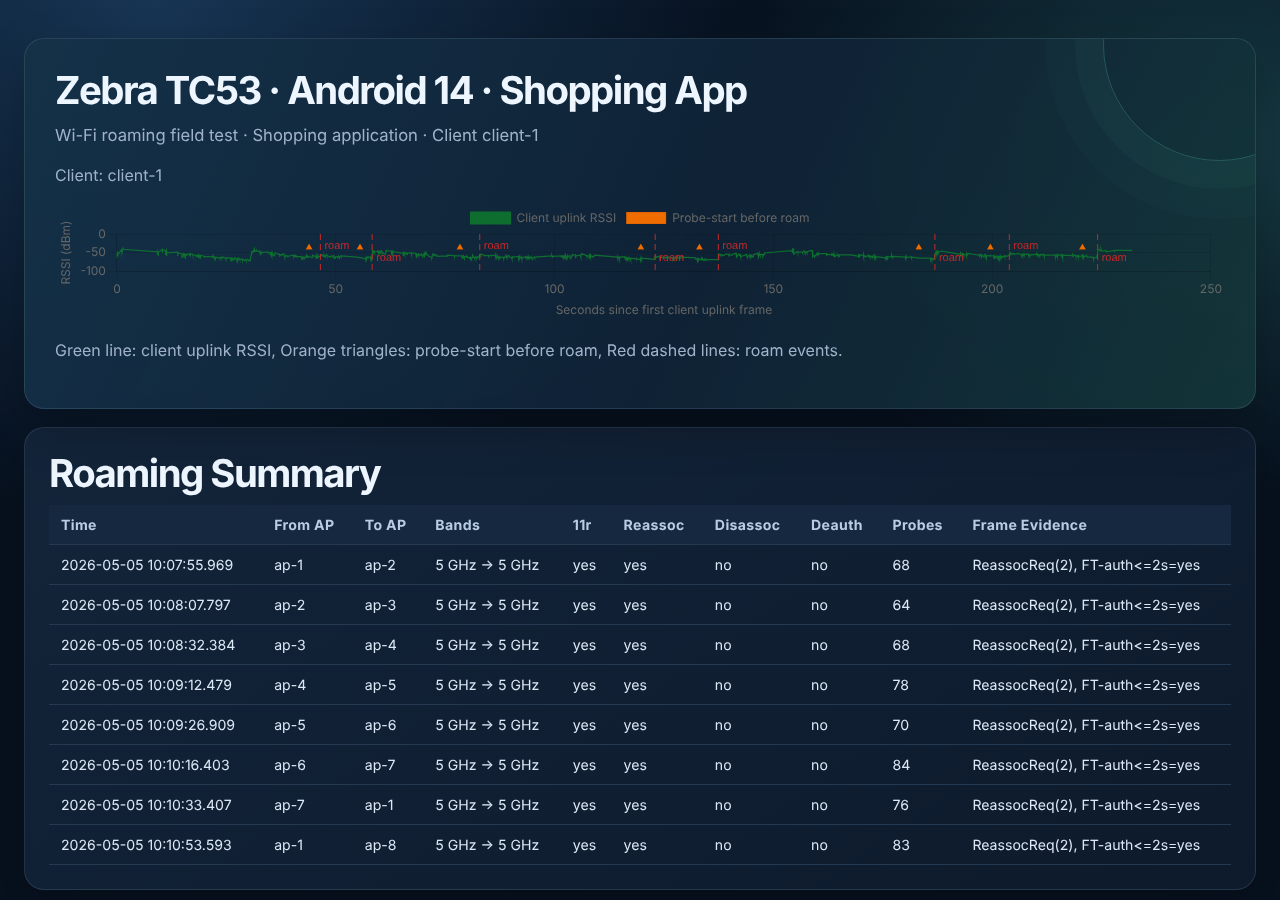
<p>Same clean pattern: every roam was 5 GHz to 5 GHz, with 11r and a reassociation, and no disassociations or deauths. The difference is how many times it roamed. I got eight roams in about 232 seconds, compared with twelve in about 220 seconds on Android 11, walking the same path. The probe counts were lower too, between 64 and 84 per roam, around 74 on average.</p>

<h3 id="android-14-voip-call">Android 14, VoIP call</h3>

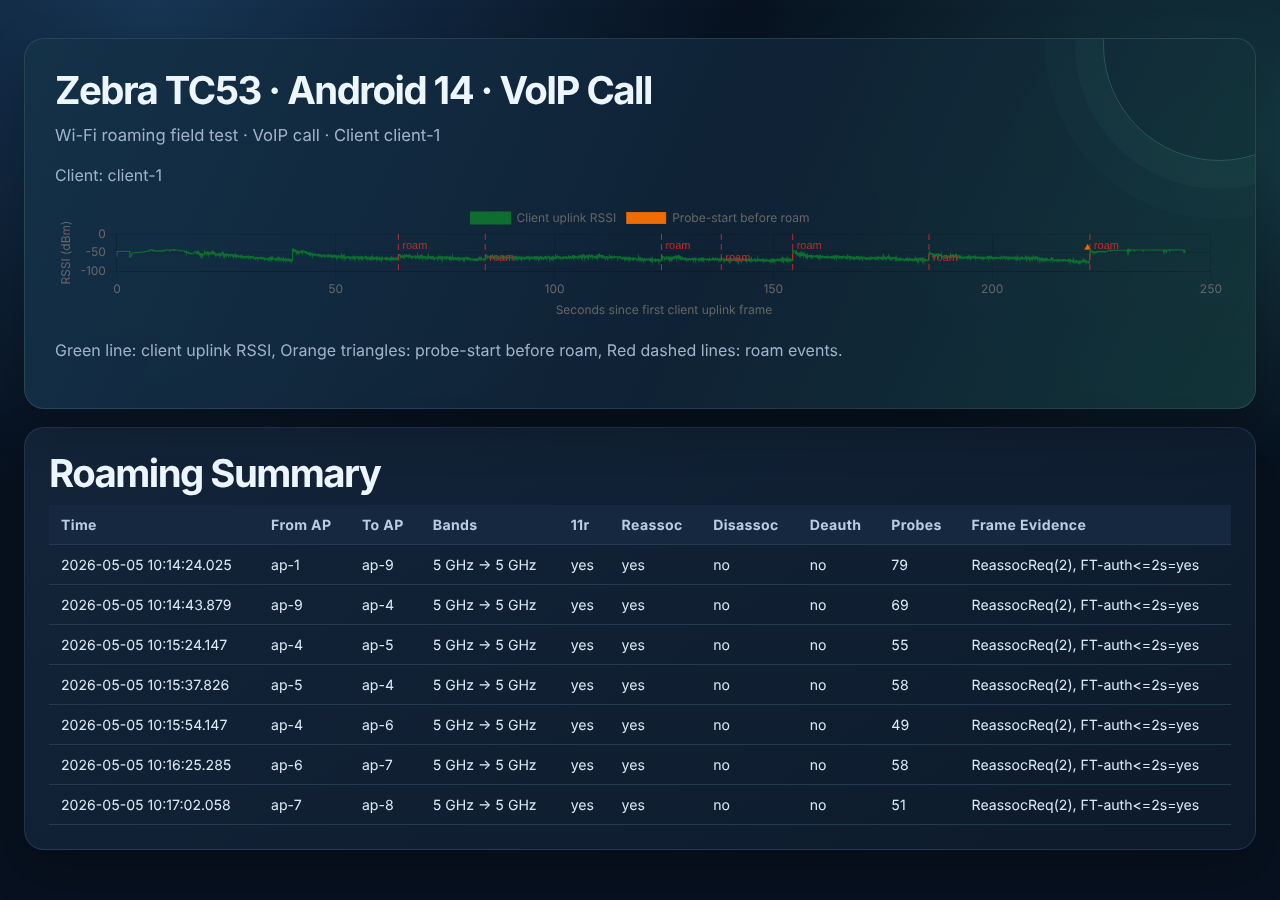
<p>Still clean. All seven roams used 11r with a reassociation, with no disassociations or deauths. Probing dropped again, between 49 and 79 per roam, around 60 on average. There was also one little ping-pong: the client went from ap-4 to ap-5 and then back to ap-4 about 14 seconds later before moving on to ap-6.</p>

<p>The signal was a little lower at the moment of the roam on this one. The median RSSI in the three seconds before each roam averaged about -69 dBm, compared with about -64 dBm for the Android 14 shopping app and about -61 dBm for the Android 11 shopping app.</p>

<h3 id="android-11-voip-call">Android 11, VoIP call</h3>

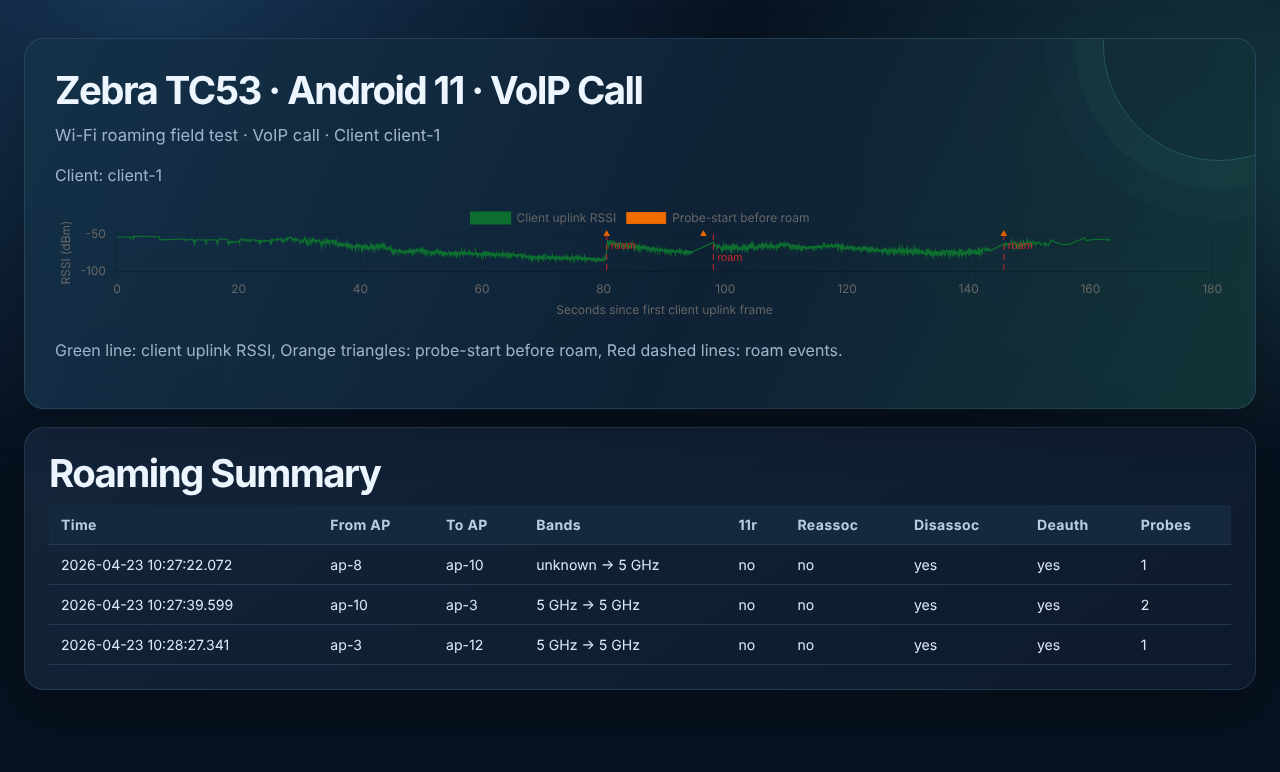
<p>This is the one that stands out. Only three roams in about 163 seconds, and none of them used 11r. No Fast Transition and no reassociation. Instead, every roam shows a deauth. The client also barely probed: one or two probes per roam, compared with 50 to 100 in the other three runs.</p>

<p>The deauths here aren’t a roam in the way we normally think of one. The client was no longer able to pass traffic on its WiFi connection, so the OS forcibly disconnected it. The “roam” you see is the device rediscovering the network and connecting again.</p>

<p>It also stayed on an AP for a long time while the signal got bad. The RSSI dropped to -86 dBm at the lowest point, and the first roam happened with the signal around -84 dBm. For comparison, the lowest RSSI in the Android 11 shopping run was -71 dBm.</p>

<p>Why would a VoIP call make the device so reluctant to roam? The main theory is that the call itself is influencing the device not to roam, because it suspects a roam will interrupt the call. My guess is that this is old logic from when networks were designed for coverage and didn’t have fast roaming mechanisms like 802.11r. That’s a theory, not something this test proves, but it fits what the data shows: the client held on to a weak AP until the connection broke.</p>

<h2 id="takeaways">Takeaways</h2>

<ul>
  <li><strong>The infrastructure was identical, but the roaming wasn’t.</strong> 11k/r/v was enabled, but it was only used on three of the four runs. Having 802.11r turned on doesn’t guarantee the client will use it for every app on every OS version.</li>
  <li><strong>The app matters as much as the OS.</strong> Android 11 roamed cleanly with the shopping app and very differently on the VoIP call. If I had only tested one app, I would have told you the wrong story about Android 11.</li>
  <li><strong>Test with the apps your users really run.</strong> A roam that looks great with a web browser or a shopping app doesn’t tell you anything about voice. The VoIP call is the scenario where a slow or sticky roam hurts the most, and it’s the one that has to be tested.</li>
  <li><strong>Look at the frames.</strong> The capture is what shows whether a roam was a Fast Transition with a reassociation or a forced disconnect followed by a full reconnect, which is a very different experience for the client.</li>
</ul>

<p>Keep in mind this is one device, one store and one walk for each scenario, so treat it as a data point and not a rule. If you’ve seen the same on other devices or OS versions, I’d like to hear about it.</p>

<p>Questions or comments? Find me on <a href="https://www.linkedin.com/in/matthew-frederick-b2220b84">LinkedIn</a></p>

<h2 id="appendix-the-four-runs">Appendix: the four runs</h2>

<p>If the interactive version above doesn’t work for you, here are the four runs as images. Each one shows the client’s RSSI over time, the probe-start markers and the roam events, with the roam table underneath.</p>

<h3 id="android-11-shopping-app-1">Android 11, shopping app</h3>

<p><a href="/assets/images/2026/wifi-roaming-android11-shopping-app.png"><img src="/assets/images/2026/wifi-roaming-android11-shopping-app.png" alt="Android 11 shopping app roaming report: 12 roams, all 802.11r" /></a></p>

<h3 id="android-11-voip-call-1">Android 11, VoIP call</h3>

<p><a href="/assets/images/2026/wifi-roaming-android11-voip.png"><img src="/assets/images/2026/wifi-roaming-android11-voip.png" alt="Android 11 VoIP call roaming report: 3 roams, no 802.11r, deauth on each roam" /></a></p>

<h3 id="android-14-shopping-app-1">Android 14, shopping app</h3>

<p><a href="/assets/images/2026/wifi-roaming-android14-shopping-app.png"><img src="/assets/images/2026/wifi-roaming-android14-shopping-app.png" alt="Android 14 shopping app roaming report: 8 roams, all 802.11r" /></a></p>

<h3 id="android-14-voip-call-1">Android 14, VoIP call</h3>

<p><a href="/assets/images/2026/wifi-roaming-android14-voip.png"><img src="/assets/images/2026/wifi-roaming-android14-voip.png" alt="Android 14 VoIP call roaming report: 7 roams, all 802.11r" /></a></p>]]></content><author><name>Matt Frederick</name></author><category term="wifi" /><category term="wlan" /><category term="wireless" /><category term="roaming" /><category term="802.11r" /><category term="android" /><category term="zebra" /><category term="voip" /><summary type="html"><![CDATA[Same Zebra TC53, same store, same walking path, same network. Change the Android version or the app and the roam looks completely different.]]></summary></entry><entry><title type="html">How to remotely wipe and reconfigure an Aruba controller</title><link href="https://finesine.com/2019/10/07/how-to-remotely-wipe-and-reconfigure-and-aruba-controller/" rel="alternate" type="text/html" title="How to remotely wipe and reconfigure an Aruba controller" /><published>2019-10-07T16:47:15-05:00</published><updated>2019-10-07T16:47:15-05:00</updated><id>https://finesine.com/2019/10/07/how-to-remotely-wipe-and-reconfigure-and-aruba-controller</id><content type="html" xml:base="https://finesine.com/2019/10/07/how-to-remotely-wipe-and-reconfigure-and-aruba-controller/"><![CDATA[<p>1. Create a script that can be copied and pasted into a controller</p>

<p>2. Grab any controller that is running the same AOS version and has the same kind of licenses (AP, PEF, RFP, etc) and console into it</p>

<p>3. Wipe the controller by doing a <em>write erase</em> (Note: do not do a <em>write erase all</em> because it will wipe out your licenses)</p>

<p>4. Go through the setup wizard a day just hit enter on everything (besides putting on an ipv6 address as that actually requires some input) and give generic administration and enable password and reboot</p>

<p>5. Login to your now “clean” controller, do a <em>config terminal</em> and paste in your script</p>

<p>6. Check the boot file of the controller by doing a <em>show boot</em> (it should be defult.cfg) and do a <em>write memory</em></p>

<p>7. Insert a USB into the controller. Verify you can see its contents by doing a <em>dir usb: partition [0|1]</em></p>

<p>8. Copy the configuration from the controller to the USB drive by doing a <em>copy flash: default.cfg usb: partition 1 &lt;filename&gt;.cfg</em> (adjust the filename from flash or USB partition if yours is different)</p>

<p>9. Take your new configuration file and tftp it to the controller you wish to wipe using <em>copy tftp: &lt;iPhone address&gt; &lt;filename&gt; flash: &lt;filename&gt;</em></p>

<p>10. Verify it was successfully copied by doing a <em>dir</em></p>

<p>11. Now edit the boot file of the controller by doing a <em>boot config-file &lt;filename&gt;</em></p>

<p>12. Verify that it is now the boot file by doing a <em>show boot</em></p>

<p>13. Reload the controller by doing a <em>reload</em> <strong>(if it asks you to save the configuration, select NO)</strong></p>

<p>14. The controller will now boot up using the new configuration file.</p>

<p>15. Login to the controller, do an <em>enable</em> then do a <em>boot config-file default.cfg</em> and then a <em>write memory</em></p>

<p>Done!</p>]]></content><author><name>Matt Frederick</name></author><summary type="html"><![CDATA[1. Create a script that can be copied and pasted into a controller 2. Grab any controller that is running the same AOS version and has the same kind of licenses (AP, PEF, RFP, etc) and console into it 3. Wipe the controller by doing a write erase (Note: do not do a write erase…]]></summary></entry><entry><title type="html">RF Survey Checklist</title><link href="https://finesine.com/2017/11/09/rf-survey-checklist/" rel="alternate" type="text/html" title="RF Survey Checklist" /><published>2017-11-09T06:58:33-06:00</published><updated>2017-11-09T06:58:33-06:00</updated><id>https://finesine.com/2017/11/09/rf-survey-checklist</id><content type="html" xml:base="https://finesine.com/2017/11/09/rf-survey-checklist/"><![CDATA[<p>I have been working on a project where we have to do surveys remotely with an on-site technician doing the actual surveying. They then send the survey file to one of our remote WLAN engineers and they review the file, make changes to the network, and then have the technician do another pass. They repeat this process until the sites are tuned to the best of their abilities. Most of these sites are pre-existing designs that just got swapped for newer technology and the customer wants to verify that the wireless is as good as it can be.</p>

<p>This is for <a href="https://www.ekahau.com/">Ekahau</a> and <a href="http://www.arubanetworks.com/">Aruba Networking</a> products. I have also already created a training video for the on-site technicians on how to use and configure ESS, as well as the survey process. This is basically a checklist for the remote WLAN engineer that is reviewing the survey and making decisions. I had already developed this for the project, so I thought I might as well modify it and share it with the rest of the WLAN community for anyone else that may find themselves in a similar situation.</p>

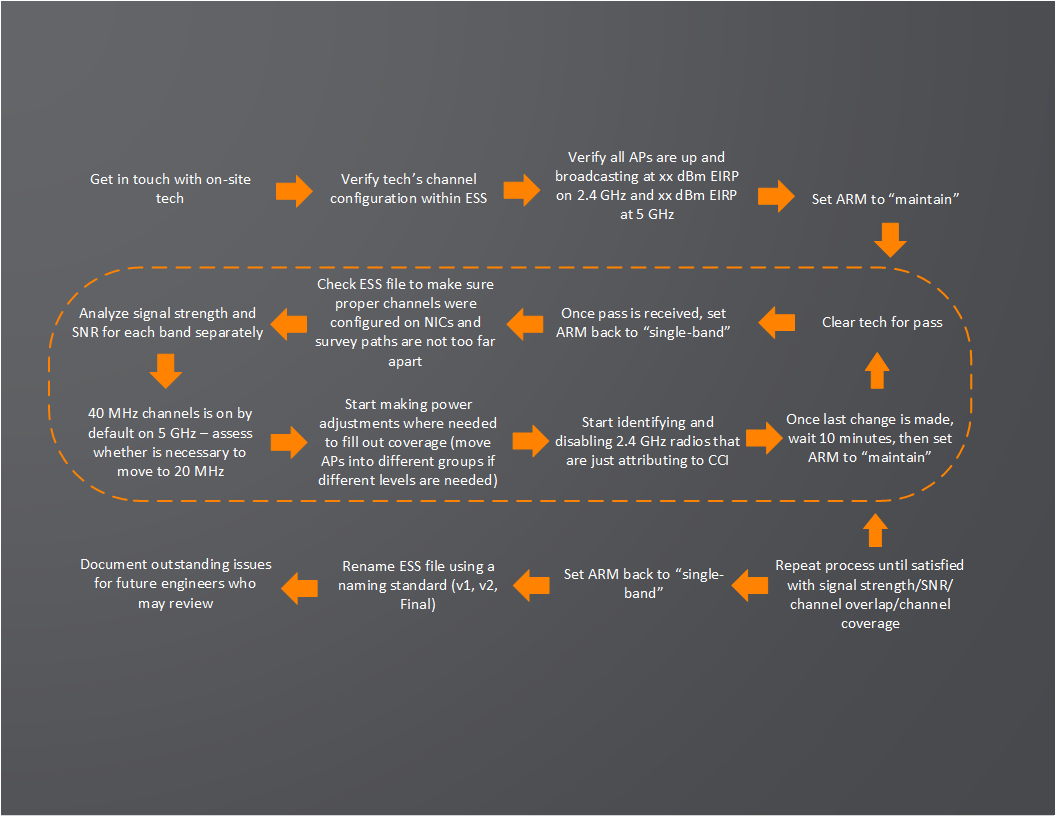
<p>First is a flowchart for quick reference. Then below it is a more detailed overview of the items. Enjoy!</p>

<hr />

<p><img src="/assets/images/2017/11/blog-rf-tuning-process.png" alt="BLOG-RF Tuning Process" /></p>

<hr />

<p><strong>RF Survey Checklist</strong></p>

<ol>
  <li>Have onsite technician send you a screen capture of how their channels are configured</li>
</ol>

<p><img src="/assets/images/2017/11/blog-rf-tuning-process2-e1510232144340.png" alt="BLOG-RF Tuning Process2" /><img src="/assets/images/2017/11/blog-rf-tuning-process3.png" alt="BLOG-RF Tuning Process3" /></p>

<p>2. Verify with technician that they are on the latest version of Ekahau</p>

<p>3. Verify all APs are up and functioning</p>

<p>4. Verify AP groups that APs are currently in and change the power in the ARM profiles to the following: ***pre-determined EIRP values***</p>

<p>5. Set all ARM profiles to maintain</p>

<p>6. Have technician start first run</p>

<p>7. Once survey file is received, set ARM profiles back to single band</p>

<p>8. Check that survey paths are not too far apart by setting Options &gt; Signal Prediction: Off and verifying that there are no holes between survey paths</p>

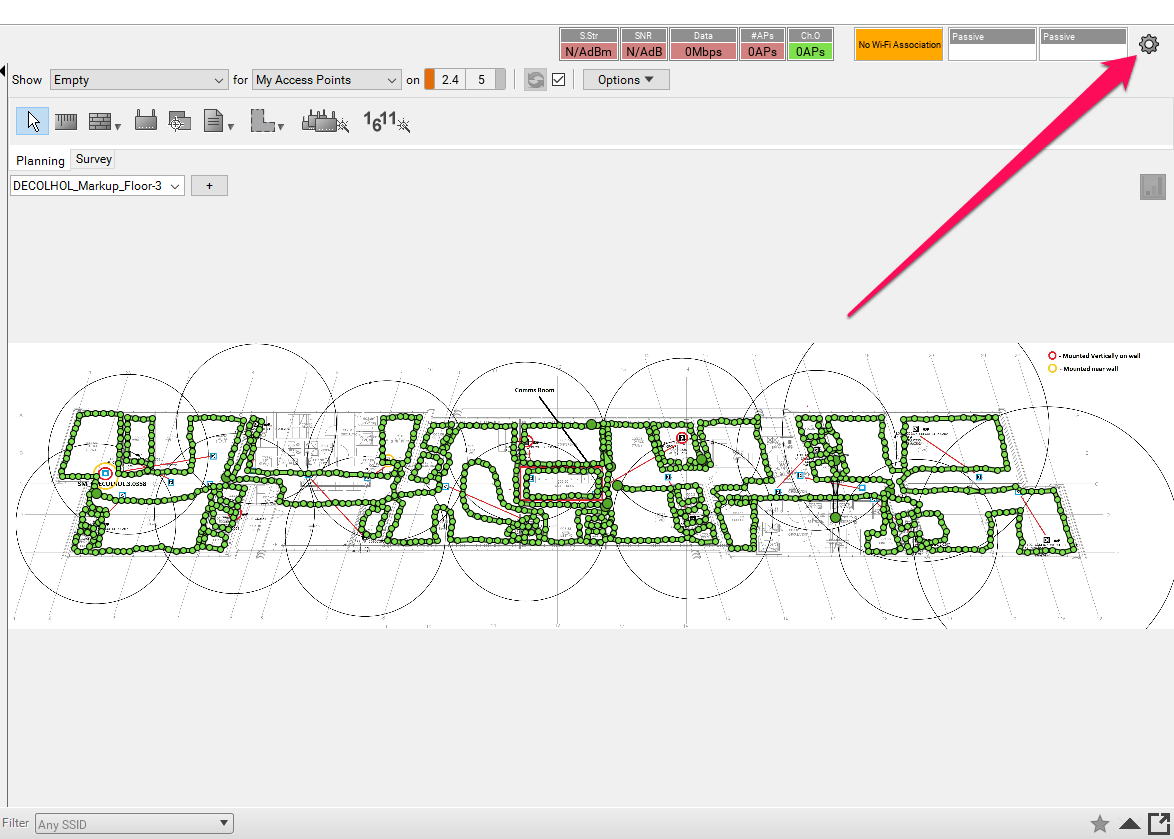
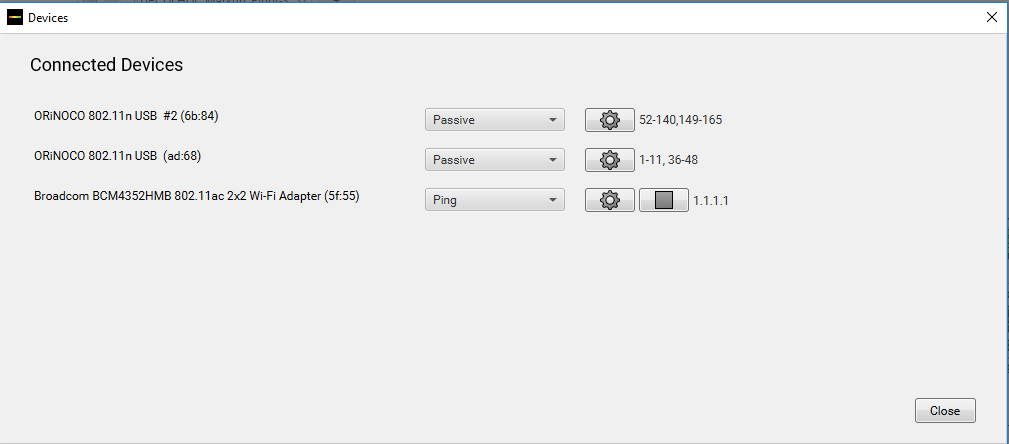
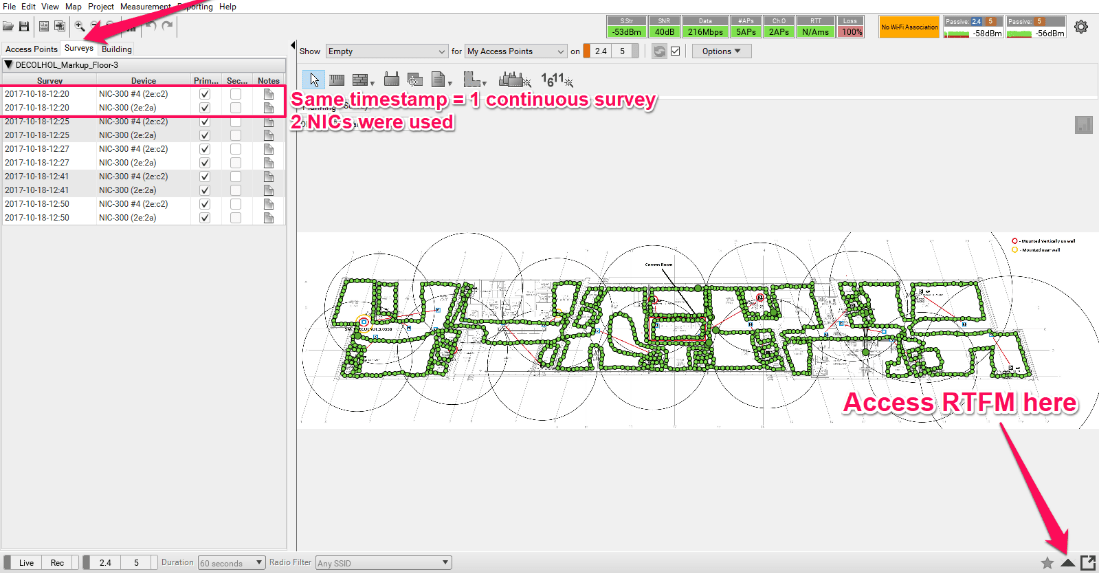
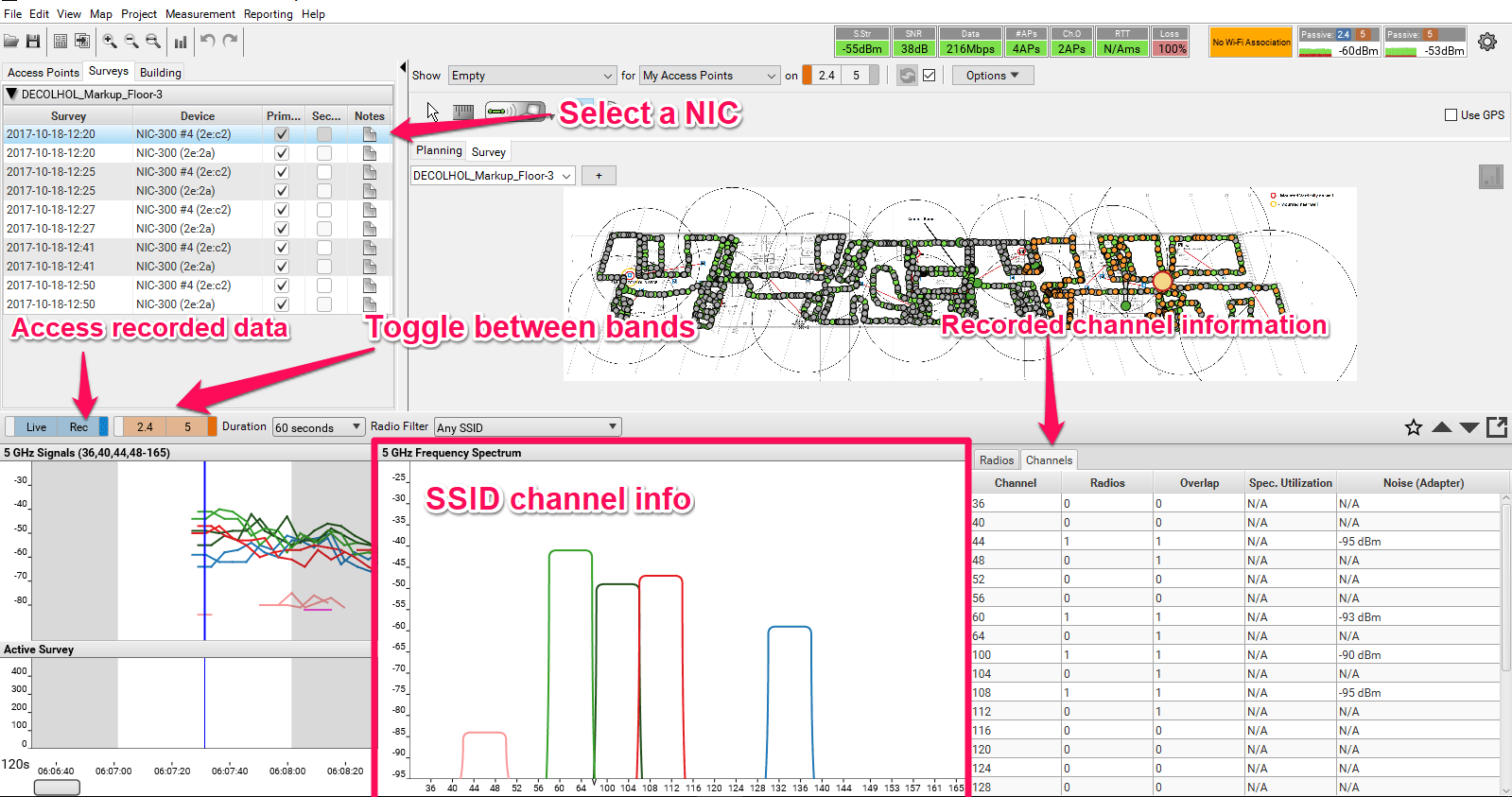
<p>9. Double check channel configuration and # of NICs using RTFM and Survey tab</p>

<p><img src="/assets/images/2017/11/blog-rf-tuning-process4-e1510232172289.png" alt="BLOG-RF Tuning Process4" /><img src="/assets/images/2017/11/blog-rf-tuning-process5-e1510232202933.png" alt="BLOG-RF Tuning Process5" /></p>

<p class="indent-1">You can see the recorded information to verify that the correct channels were confirmed per NIC. Big red flags is seeing whole UNII bands missing or missing a radio in the Access Points tab on the survey. Double check what they are seeing in this view vs the “show ap active” from the controller to make sure we are seeing SSIDs on the channels the APs are broadcasting on. If the channel configuration was not correct, the onsite resource HAS to re-walk the site.</p>

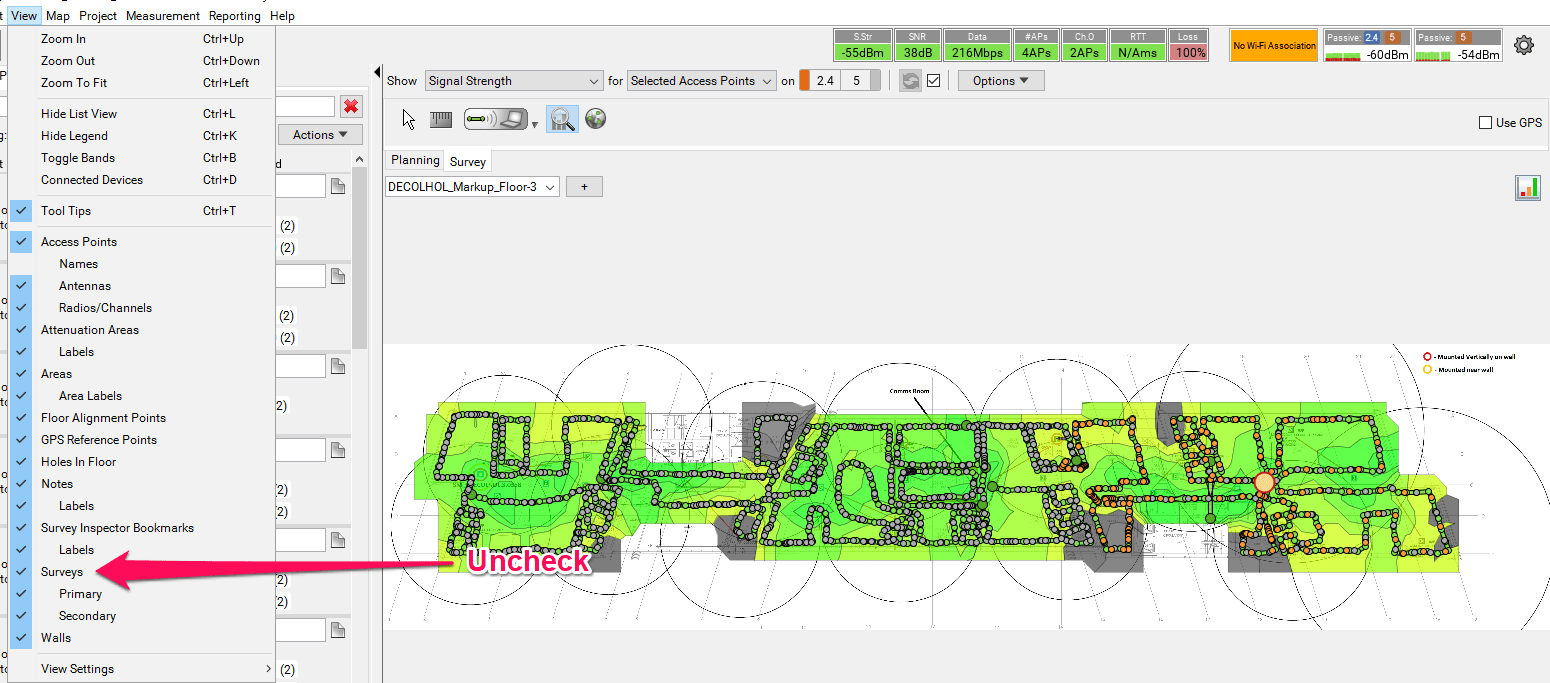
<p>10. Remove survey paths from view</p>

<p><img src="/assets/images/2017/11/blog-rf-tuning-process6-e1510231387950.png" alt="BLOG-RF Tuning Process6" /></p>

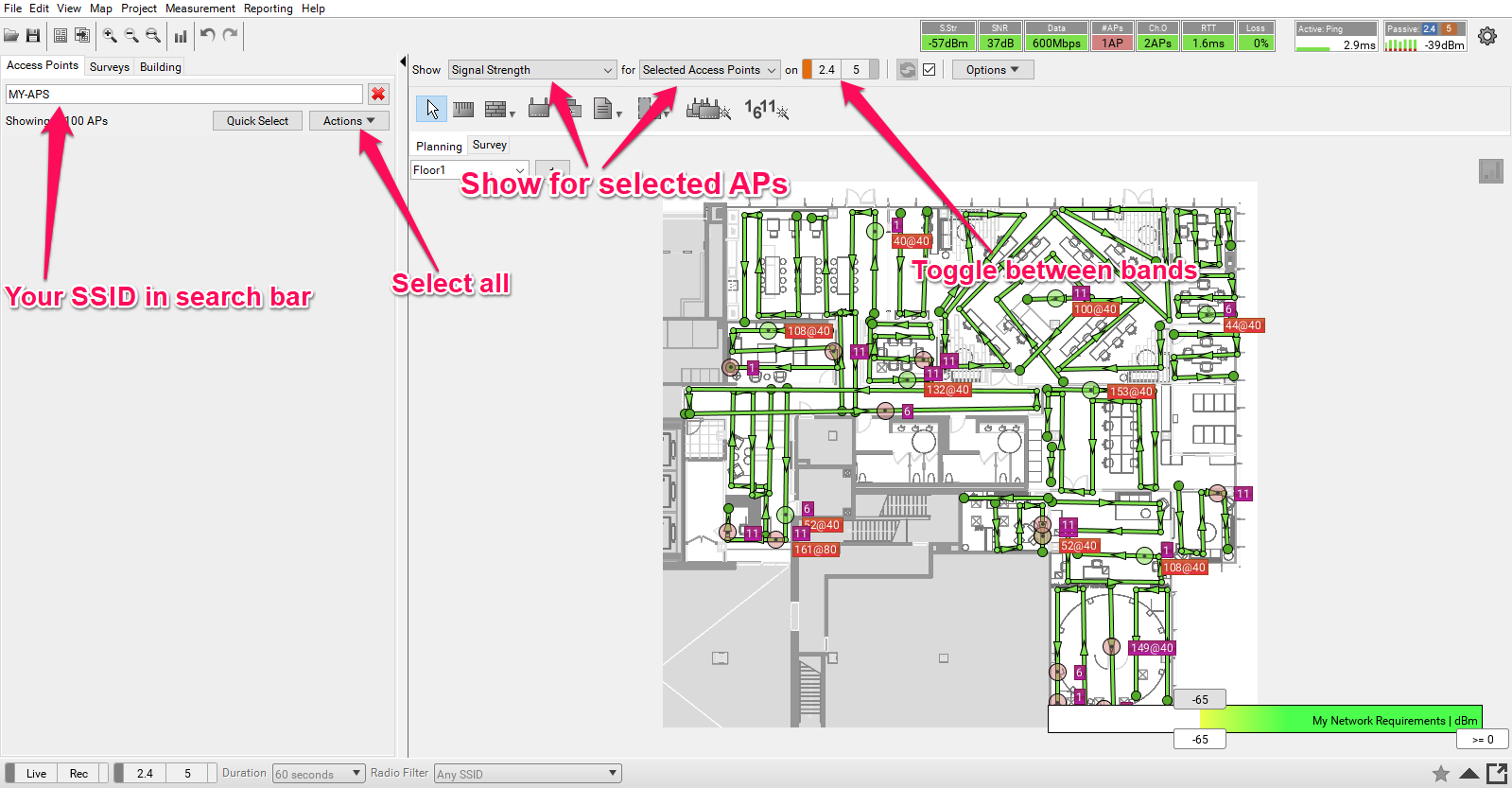
<p>11. Filter signal strength view to only include your APs</p>

<p><img src="/assets/images/2017/11/blog-rf-tuning-process7.png" alt="BLOG-RF Tuning Process7" /></p>

<p>12. Start identifying coverage gaps and moving APs to the next power group as needed.</p>

<p class="indent-1">Main 3 groups:</p>

<p class="indent-2">Low-power</p>

<p class="indent-3">a xx dBm</p>

<p class="indent-3">g xx dBm</p>

<p class="indent-2">Med-power</p>

<p class="indent-3">a xx dBm</p>

<p class="indent-3">g xx dBm</p>

<p class="indent-2">High-power</p>

<p class="indent-3">a xx dBm</p>

<p class="indent-3">g xx dBm</p>

<p class="indent-1">Groups can have custom power levels if needed. Choose an unused AP group that you want those APs in that need non-standard power levels and edit its ARM profile. Example:</p>

<div class="language-plaintext highlighter-rouge"><div class="highlight"><pre class="highlight"><code>configure terminal
rf arm-profile "New-power-g"
  max-tx-power xx
  min-tx-power xx
</code></pre></div></div>

<p class="indent-1">Try to keep similar power levels for all APs on a floor – avoid situations where you have some APs transmitting at higher power levels (&gt; or = 15 dBm EIRP) and some other transmitting at lower power levels (&lt; or = 6 dBm) on the same floor</p>

<p>13. 5 GHz is using 40 MHz channels by default, based on regulatory domain + density of APs, determine whether it needs to be moved to 20 MHz. This is edited in the ARM profiles with the command “40MHz-allowed-bands-none” and needs to be done on all “a” ARM profiles.</p>

<p>14. Need to try achieve at least xx signal strength and xx SNR on both bands. Use best judgement on (1) How to achieve this (2) If it is plausible to achieve this (3) If it makes sense to achieve this – particularly on 2.4, you want to balance CCI with SNR/RSSI requirements.</p>

<p>15. If seeing an excessive amount of 2.4 coverage, consider turning off 2.4 radios. This outlines a good process:</p>

<p class="indent-1"><a href="https://www.ekahau.com/blog/2016/09/27/guest-blog-using-ekahau-site-survey-to-create-a-2-4-ghz-radio-plan/">https://www.ekahau.com/blog/2016/09/27/guest-blog-using-ekahau-site-survey-to-create-a-2-4-ghz-radio-plan/</a>Once last change is made, wait 10 minutes, set ARM back to maintain, and clear technician for another run.</p>

<p>16. Repeat process until surveying is complete</p>

<p>17. Document any outstanding issues. Examples of issues:</p>

<ol>
  <li>Multiple adjacent APs on the same channel</li>
  <li>High co-channel interference</li>
  <li>Large coverage areas for single APs</li>
  <li>Areas that don’t meet required signal strength and/or SNR</li>
  <li>Walls with higher-than-expected attenuation</li>
</ol>

<p>18. Once complete, take ARM out of maintain</p>

<p>19. Name all surveys as [SITECODE]_Survey_v1, v2, etc with last file having a _Final</p>]]></content><author><name>Matt Frederick</name></author><category term="aruba" /><category term="consulting" /><category term="ekahau" /><category term="ESS" /><category term="mobility" /><category term="networking" /><category term="remote" /><category term="rf survey" /><category term="Survey" /><category term="wifi" /><category term="wireless" /><category term="wlan" /><summary type="html"><![CDATA[I have been working on a project where we have to do surveys remotely with an on-site technician doing the actual surveying. They then send the survey file to one of our remote WLAN engineers and they review the file, make changes to the network, and then have the technician do another pass. They repeat…]]></summary></entry><entry><title type="html">Aruba: Temporarily enabling BLE beacon, gathering data, and disabling</title><link href="https://finesine.com/2017/06/06/aruba-temporarily-enabling-ble-beacon-gathering-data-and-disabling/" rel="alternate" type="text/html" title="Aruba: Temporarily enabling BLE beacon, gathering data, and disabling" /><published>2017-06-06T13:39:56-05:00</published><updated>2017-06-06T13:39:56-05:00</updated><id>https://finesine.com/2017/06/06/aruba-temporarily-enabling-ble-beacon-gathering-data-and-disabling</id><content type="html" xml:base="https://finesine.com/2017/06/06/aruba-temporarily-enabling-ble-beacon-gathering-data-and-disabling/"><![CDATA[<p><strong>We have two AP provisioning profiles, the “default” enables the USB port and the “no-usb” disables the port. AP group is currently referencing the “no-usb”</strong></p>

<div class="language-plaintext highlighter-rouge"><div class="highlight"><pre class="highlight"><code>ap provisioning-profile "default"
!
ap provisioning-profile "no-usb"
usb-power-mode disable
ap-poe-power-optimization enabled

ap-group "Warehouse-Lab"
virtual-ap "TEST"
dot11a-radio-profile "Warehouse-Lab-ARM-a"
dot11g-radio-profile "Warehouse-Lab-ARM-g"
ap-system-profile "BuildingProfile"
provisioning-profile "no-usb"
</code></pre></div></div>

<p><strong>BLE scanner (android app “BLE Scanner”) next to the AP and picking up no signal</strong></p>

<div class="language-plaintext highlighter-rouge"><div class="highlight"><pre class="highlight"><code>(Test) # show ap database

AP Database
-----------
Name               Group          AP Type  IP Address   Status          Flags  Switch IP    Standby IP
----               -----          -------  ----------   ------          -----  ---------    ----------
40:e3:d6:c5:8a:14  Warehouse-Lab  225      10.42.68.20  Up 23h:42m:20s  2      10.42.68.10  0.0.0.0

Flags: U = Unprovisioned; N = Duplicate name; G = No such group; L = Unlicensed
I = Inactive; D = Dirty or no config; E = Regulatory Domain Mismatch
X = Maintenance Mode; P = PPPoE AP; B = Built-in AP; s = LACP striping
R = Remote AP; R- = Remote AP requires Auth; C = Cellular RAP;
c = CERT-based RAP; 1 = 802.1x authenticated AP; 2 = Using IKE version 2
u = Custom-Cert RAP; S = Standby-mode AP; J = USB cert at AP
i = Indoor; o = Outdoor
M = Mesh node; Y = Mesh Recovery

Total APs:1
</code></pre></div></div>

<p><strong>One AP up in the database</strong></p>

<div class="language-plaintext highlighter-rouge"><div class="highlight"><pre class="highlight"><code>(Test) #show ap debug ble-table ap-name 40:e3:d6:c5:8a:14
No AP found with ap_name 40:e3:d6:c5:8a:14
</code></pre></div></div>

<p><strong>Controller returning error on BLE command since it has no BLE turned on (USB port turned off)</strong></p>

<p><strong>Configure to AP provisioning profile back to the default (enabling USB port)</strong></p>

<div class="language-plaintext highlighter-rouge"><div class="highlight"><pre class="highlight"><code>(Test) #configure t
Enter Configuration commands, one per line. End with CNTL/Z

(Test) (config) #ap-group Warehouse-Lab
(Test) (AP group "Warehouse-Lab") #provisioning-profile "default"
(Test) (AP group "Warehouse-Lab") #end
(Test) #write mem
Saving Configuration...

Configuration Saved.
</code></pre></div></div>

<p><strong>After &lt;1min I see something pop up on my BLE scanner with a strong signal</strong></p>

<p><strong>Issue same ap debug command to see BLE table</strong></p>

<div class="language-plaintext highlighter-rouge"><div class="highlight"><pre class="highlight"><code>(Test) #show ap debug ble-table ap-name 40:e3:d6:c5:8a:14

BLE Device Table
----------------
MAC                HW_Type    FW_Ver        Flags   Status  Batt(%)  RSSI  Major#  Minor#  UUID                                  Tx_Power  Last Update  Uptime
---                -------    ------        -----   ------  -------  ----  ------  ------  ----                                  --------  -----------  ------
88:c2:55:ca:cf:3b  LS-BT1USB  OAD B 1.1-25  0x0083  LIA     USB      ---    0       0       4152554E-F99B-4A3B-86D0-947070693A78  14        18s          2m:20s

Total beacons:1

APB UI:[0/NO_UPGRADE_REQD]:65535(0xffff) blks:0/0 rep:0  total:0(0x0)
APB UI:upg_b_status-next:0x00/ooo:0x00/next2:0x00/upg_b:0x00/allrx:0x00/oooBlk:0x00/oooBlk:0x00/oooBlk:0x00
APB UI:upg_b_status_errs-inv_upg:0x00/inv_cmd:0x00/inv_op:0x00/buf_tl:0x00/good:0x00
APB UI:acks/ka-From APB:0x00/0x00 From app:0x00,0x00/0x00
APB UI Clock:Start:1970-01-01 00:00:00  End:1970-01-01 00:00:00  Current:2017-04-04 11:58:52
Note: Battery level for LS-BT1USB devices is indicated as USB.
Note: Uptime is shown as Days hour:minute:second.
Note: Last Update is time in seconds since last heard update.
Status Flags:L:AP's local beacon; I:iBeacon; A: Aruba Beacon; H: Aruba HiPower Beacon
:U:Image Upgrade Pending
</code></pre></div></div>

<p><strong>We can now capture the beacon mac address and any other needed information</strong></p>

<p><strong>Go back and put on the “no-usb” provisioning profile</strong></p>

<div class="language-plaintext highlighter-rouge"><div class="highlight"><pre class="highlight"><code>(Test) #configure t
Enter Configuration commands, one per line. End with CNTL/Z

(Test) (config) #ap-group Warehouse-Lab
(Test) (AP group "Warehouse-Lab") #provisioning-profile "no-usb"
(Test) (AP group "Warehouse-Lab") #end
(Test) #write mem
Saving Configuration...

Configuration Saved.
</code></pre></div></div>

<p><strong>Verify the BLE beacon is off again by checking BLE scanner and issuing BLE table command</strong></p>

<div class="language-plaintext highlighter-rouge"><div class="highlight"><pre class="highlight"><code>(Test) #show ap debug ble-table ap-name 40:e3:d6:c5:8a:14
No AP found with ap_name 40:e3:d6:c5:8a:14
</code></pre></div></div>]]></content><author><name>Matt Frederick</name></author><category term="aruba" /><category term="aruba networks" /><category term="beacon" /><category term="ble" /><category term="wireless" /><summary type="html"><![CDATA[Turning on an Aruba AP's USB-powered BLE beacon just long enough to capture its information with show ap debug ble-table, then switching the AP group back to the “no-usb” provisioning profile.]]></summary></entry><entry><title type="html">Webinar: Performing an indoor arena design survey</title><link href="https://finesine.com/2016/12/07/webinar-performing-an-indoor-arena-design-survey/" rel="alternate" type="text/html" title="Webinar: Performing an indoor arena design survey" /><published>2016-12-07T08:50:36-06:00</published><updated>2016-12-07T08:50:36-06:00</updated><id>https://finesine.com/2016/12/07/webinar-performing-an-indoor-arena-design-survey</id><content type="html" xml:base="https://finesine.com/2016/12/07/webinar-performing-an-indoor-arena-design-survey/"><![CDATA[<p>Check out the webinar I did with Ekahau on how to perform a design survey for an indoor arena!</p>

<p><a href="https://youtu.be/1sbHIb4Cn3U">https://youtu.be/1sbHIb4Cn3U</a></p>]]></content><author><name>Matt Frederick</name></author><category term="arena" /><category term="ekahau" /><category term="large public venue" /><category term="Survey" /><category term="webinar" /><category term="wifi design" /><summary type="html"><![CDATA[Check out the webinar I did with Ekahau on how to perform a design survey for an indoor arena! https://youtu.be/1sbHIb4Cn3U]]></summary></entry><entry><title type="html">Using Ekahau Site Survey to Create a 2.4 GHz Plan</title><link href="https://finesine.com/2016/09/27/using-ekahau-site-survey-to-create-a-2-4-ghz-plan/" rel="alternate" type="text/html" title="Using Ekahau Site Survey to Create a 2.4 GHz Plan" /><published>2016-09-27T14:18:18-05:00</published><updated>2016-09-27T14:18:18-05:00</updated><id>https://finesine.com/2016/09/27/using-ekahau-site-survey-to-create-a-2-4-ghz-plan</id><content type="html" xml:base="https://finesine.com/2016/09/27/using-ekahau-site-survey-to-create-a-2-4-ghz-plan/"><![CDATA[<p>I did a guest blog post with Ekahau on creating a 2.4 GHz plan! Check it out here:</p>

<p><a href="http://www.ekahau.com/wifidesign/blog/2016/09/27/guest-blog-using-ekahau-site-survey-to-create-a-2-4-ghz-radio-plan/">http://www.ekahau.com/wifidesign/blog/2016/09/27/guest-blog-using-ekahau-site-survey-to-create-a-2-4-ghz-radio-plan/</a></p>]]></content><author><name>Matt Frederick</name></author><category term="2.4" /><category term="ekahau" /><category term="ESS" /><category term="predictive" /><category term="site survey" /><category term="wifi" /><category term="wifi design" /><category term="wireless" /><category term="wlan" /><summary type="html"><![CDATA[I did a guest blog post with Ekahau on creating a 2.4 GHz plan! Check it out here: http://www.ekahau.com/wifidesign/blog/2016/09/27/guest-blog-using-ekahau-site-survey-to-create-a-2-4-ghz-radio-plan/]]></summary></entry><entry><title type="html">Using netsh WLAN show interfaces to Monitor Association/Roaming</title><link href="https://finesine.com/2016/09/17/using-netsh-wlan-show-interfaces-to-monitor-associationroaming/" rel="alternate" type="text/html" title="Using netsh WLAN show interfaces to Monitor Association/Roaming" /><published>2016-09-17T19:07:22-05:00</published><updated>2016-09-17T19:07:22-05:00</updated><id>https://finesine.com/2016/09/17/using-netsh-wlan-show-interfaces-to-monitor-associationroaming</id><content type="html" xml:base="https://finesine.com/2016/09/17/using-netsh-wlan-show-interfaces-to-monitor-associationroaming/"><![CDATA[<p>In April, John Cosgrove (@rtr_man) posted the following way to monitor your WLAN association statistics that I have been using and playing with since:</p>

<p><a href="/assets/images/2016/09/cfdpr2_ueaag4v4.jpg"><img src="/assets/images/2016/09/cfdpr2_ueaag4v4.jpg" alt="cfdpr2_ueaag4v4" /></a></p>

<p>Once you paste from :loop to goto loop into notepad and save as a .bat file, you will see this little icon:</p>

<p><a href="/assets/images/2016/09/new1.png"><img src="/assets/images/2016/09/new1.png" alt="new1" /></a></p>

<p>Double-click that and it will open up your command line and it will look like this:</p>

<p><a href="/assets/images/2016/09/22.png"><img src="/assets/images/2016/09/22-600w.png" alt="22" /></a></p>

<p>If you’ve been working in WiFi for at least a little while, then you should know what most of these mean. Really important ones to pay attention to are BSSID (mac address of the radio of the AP you are connecting to) and Signal (received signal strength from AP).</p>

<p>As you can see, the signal strength is in a percentage. If you want to convert this percentage to dBm, use the following formula (quality=Signal %):</p>

<p>quality = 2 * (dBm + 100) where dBm: [-100 to -50]</p>

<p>dBm = (quality / 2) – 100 where quality: [0 to 100]</p>

<p>So a 50% would be a -75 dBm. A 70% would be -65 dBm. 100% is -50 dBm or better. Those are the markers I keep in my head when looking at it.</p>

<p>This is great for real time monitoring of how your client is behaving, but what if you want to record the output? Maybe you want to save the output in a text file? Well, my good WiFi buddy, you are in luck. You would then edit the batch file to look like this:</p>

<div class="language-bat highlighter-rouge"><div class="highlight"><pre class="highlight"><code><span class="nl">:loop</span>
<span class="nb">netsh</span> <span class="kd">WLAN</span> <span class="kd">show</span> <span class="kd">interfaces</span> <span class="o">&gt;&gt;</span><span class="kd">WLANstat</span>.txt
<span class="nb">timeout</span> <span class="na">/t </span><span class="m">5</span>
<span class="k">goto</span> <span class="kd">loop</span>
</code></pre></div></div>

<p>You can replace “WLANstat” with whatever you want to name the file.</p>

<p>Now when you run it, the output in the command line will look like this:</p>

<p><a href="/assets/images/2016/09/33.png"><img src="/assets/images/2016/09/33-600w.png" alt="33" /></a></p>

<p>Now you’re probably saying “What the heck, Matt?!? Now it’s not showing me any of the statistics! What a dumb blog.”</p>

<p>Take a chill pill, friend, and look at your desktop. Notice anything different? Like maybe a text file that wasn’t there before? You should see a text file appear after you ran the batch file:</p>

<p><a href="/assets/images/2016/09/34.png"><img src="/assets/images/2016/09/34.png" alt="34" /></a></p>

<p>Open the text file and now there is the output:</p>

<p><a href="/assets/images/2016/09/35.png"><img src="/assets/images/2016/09/35-464w.png" alt="35" /></a></p>

<p>Starting to trust me yet?</p>

<p>OK, so now we have our output being saved in a text file to review later. We’re done here, right? Wrong, good sir, wrong. Wouldn’t it be nice to have some sort of timeline to reference? It would, right? That’s what I thought as well. So, after an hour or so of furious googling, playing, scripting, cursing, googling more, scripting more, cursing more, and having a beer I found a way to get the timestamp in there. Now I am posting it here to hopefully help my WiFi brethren not have to endure what I did.</p>

<p>Edit your batch file to now look like this (by the way, Notepad++ is great for this because you can just right click the file then click “Edit in Notepad++”):</p>

<div class="language-bat highlighter-rouge"><div class="highlight"><pre class="highlight"><code><span class="nl">:loop</span>
<span class="kd">set</span> <span class="kd">time_hh</span><span class="o">=</span><span class="vm">%time</span>:<span class="o">~</span><span class="m">0</span><span class="o">,</span><span class="m">2</span><span class="err">%</span>
<span class="k">if</span> <span class="nv">%time_hh%</span> <span class="ow">lss</span> <span class="m">10</span> <span class="o">(</span><span class="kd">set</span> <span class="kd">time_hh</span><span class="o">=</span><span class="m">0</span><span class="vm">%time</span>:<span class="o">~</span><span class="m">1</span><span class="o">,</span><span class="m">1</span><span class="err">%</span><span class="o">)</span>
<span class="kd">set</span> <span class="kd">time_mn</span><span class="o">=</span><span class="vm">%time</span>:<span class="o">~</span><span class="m">3</span><span class="o">,</span><span class="m">2</span><span class="err">%</span>
<span class="kd">set</span> <span class="kd">time_ss</span><span class="o">=</span><span class="vm">%time</span>:<span class="o">~</span><span class="m">6</span><span class="o">,</span><span class="m">2</span><span class="err">%</span>
<span class="kd">set</span> <span class="kd">time_ms</span><span class="o">=</span><span class="vm">%time</span>:<span class="o">~</span><span class="m">9</span><span class="o">,</span><span class="m">2</span><span class="err">%</span>

<span class="nb">echo</span> <span class="nv">%time_hh%</span>:<span class="nv">%time_mn%</span>:<span class="nv">%time_ss%</span>.<span class="nv">%time_ms%</span> <span class="o">&gt;&gt;</span> <span class="kd">WLANstat_</span><span class="vm">%date</span>:<span class="o">~-</span><span class="m">4</span><span class="o">,</span><span class="m">4</span><span class="vm">%%date</span>:<span class="o">~-</span><span class="m">7</span><span class="o">,</span><span class="m">2</span><span class="vm">%%date</span>:<span class="o">~-</span><span class="m">10</span><span class="o">,</span><span class="m">2</span><span class="err">%</span>.txt
<span class="nb">netsh</span> <span class="kd">WLAN</span> <span class="kd">show</span> <span class="kd">interfaces</span> <span class="o">&gt;&gt;</span><span class="kd">WLANstat_</span><span class="vm">%date</span>:<span class="o">~-</span><span class="m">4</span><span class="o">,</span><span class="m">4</span><span class="vm">%%date</span>:<span class="o">~-</span><span class="m">7</span><span class="o">,</span><span class="m">2</span><span class="vm">%%date</span>:<span class="o">~-</span><span class="m">10</span><span class="o">,</span><span class="m">2</span><span class="err">%</span>.txt
<span class="nb">timeout</span> <span class="na">/t </span><span class="m">5</span>
<span class="k">goto</span> <span class="kd">loop</span>
</code></pre></div></div>

<p>The string after the filename will append the date in the filename…..just for extra awesomeness….</p>

<p>Now when you run the batch file, the output in the command line should look like this:<br />
<a href="/assets/images/2016/09/36.png"><img src="/assets/images/2016/09/36-600w.png" alt="36" /></a></p>

<p>Now you should see a text file appear on your desktop with the date in the filename (YearDayMonth – you can play with the string if you want this different):</p>

<p><a href="/assets/images/2016/09/37.png"><img src="/assets/images/2016/09/37.png" alt="37" /></a></p>

<p>When you open the text file, you should see the time above each output (Hour:Minute:Second.Millisecond – you can delete the “set time_ms” line if you don’t want the milliseconds):</p>

<p><a href="/assets/images/2016/09/38.png"><img src="/assets/images/2016/09/38-460w.png" alt="38" /></a></p>

<p>So, if you want to document the roaming behavior and perceived signal strength of a Windows client on the network without having to login to the network and look through logs, just open the batch file and walk around and close it when you are done. It’s super quick and easy and gives you some pretty valuable information.</p>

<p>Comment below or tweet me <a href="https://twitter.com/mattbfrederick">@mattbfrederick</a> with any feedback/questions.</p>

<p>Thanks for reading!</p>

<p>Edit: I found John’s original blog post on this:</p>

<p><a href="http://wifijohnny.blogspot.com/2016/04/windows-wlan-troubleshooting-with.html">http://wifijohnny.blogspot.com/2016/04/windows-wlan-troubleshooting-with.html</a></p>]]></content><author><name>Matt Frederick</name></author><category term="command line" /><category term="netsh" /><category term="wifi" /><category term="windows 10" /><category term="windows 7" /><category term="windows 8" /><category term="wlan" /><summary type="html"><![CDATA[In April, John Cosgrove (@rtr_man) posted the following way to monitor your WLAN association statistics that I have been using and playing with since: Once you paste from :loop to goto loop into notepad and save as a .bat file, you will see this little icon: Double-click that and it will open up your command…]]></summary></entry><entry><title type="html">Aruba: How to Remotely Wipe and Reconfigure an Aruba Controller</title><link href="https://finesine.com/2016/08/24/how-to-remotely-wipe-and-reconfigure-an-aruba-controller/" rel="alternate" type="text/html" title="Aruba: How to Remotely Wipe and Reconfigure an Aruba Controller" /><published>2016-08-24T14:25:01-05:00</published><updated>2016-08-24T14:25:01-05:00</updated><id>https://finesine.com/2016/08/24/how-to-remotely-wipe-and-reconfigure-an-aruba-controller</id><content type="html" xml:base="https://finesine.com/2016/08/24/how-to-remotely-wipe-and-reconfigure-an-aruba-controller/"><![CDATA[<p>I’ve recently been on a project that required me to be able to remotely wipe and reconfigure an Aruba controller without having console access. I have yet to run into this before and had to do some playing around to make it work. I tried making a config file in Notepad and saving it as a .cfg and having the controller boot to that, but the passwords never worked and I would have to have someone break into it using a console. Then, when trying to configure other settings that referenced default configuration lines – they wouldn’t work. The only sure way I could get it to work every time is by running the configuration through a controller first and then saving the .cfg file off the controller and using that. If anyone has anything better, leave a comment or hit me up on Twitter <a href="https://twitter.com/mattbfrederick">@mattbfrederick</a></p>

<p>1. Create a script that can be copied and pasted into a controller</p>

<div class="language-plaintext highlighter-rouge"><div class="highlight"><pre class="highlight"><code>hostname ZaphodBeeblebrox
!
enable bypass
!
banner motd ~
"NOTICE NOTICE NOTICE NOTICE NOTICE NOTICE NOTICE NOTICE NOTICE NOTICE"
"This is a private network device. If you are not authorized to"
"access this device, disconnect at once! Actual or attempted use,"
"access, examination, or configuration change by an unauthorized"
"person external to the Corporation will result in criminal and civil"
"prosecution to the fullest extent of the law. Unauthorized login"
"attempts by internal personnel will be reported immediately to the"
"violator's management and may result in disciplinary action."
"NOTICE NOTICE NOTICE NOTICE NOTICE NOTICE NOTICE NOTICE NOTICE NOTICE"
~
!
clock timezone UTC 0
!
license profile centralized-licensing-enable
!
ipv6 enable
!
ipv6 mld
!
vlan 2 Native
vlan 42 MGMT
!

interface vlan 850
ip address 10.10.10.42 255.255.255.0
!
Interface Loopback
no ip address
!
ip default-gateway 10.10.10.1
!
interface gigabitethernet 0/0/2
description "Link to SomeSwitch"
trusted
ip access-group "mcast_opt" session
switchport mode trunk
switchport trunk native vlan 2
switchport trunk allowed vlan 42
!
interface gigabitethernet 0/0/0
description "Undefined"
trusted
ip access-group "mcast_opt" session
switchport mode trunk
switchport trunk native vlan 2
switchport trunk allowed vlan 42
!
interface vlan 1
no ip address
shutdown
!
syslocation "Magrathea"
syscontact "DentArthurDent"
snmp-server community "KnowWhereYoureTowelIs"
!
mgmt-server type amp primary-server 10.10.10.43 profile default-amp
!
aaa authentication-server tacacs "AAAserver"
host "10.10.10.50"
key PanGalacticGoggleBlaster
session-authorization
!
aaa authentication mgmt
server-group "mgmt"
enable
!
aaa tacacs-accounting server-group mgmt mode enable command all
!
snmp-server enable trap
snmp-server host 10.10.10.100 version 2c KnowWhereYoureTowelIs udp-port 162
snmp-server host 10.10.10.101 version 2c KnowWhereYoureTowelIs udp-port 162
snmp-server trap source 10.10.10.42
logging level warnings security
logging level warnings network
logging level warnings system
logging level warnings user
logging level warnings wireless
!
localip 0.0.0.0 ipsec ThrowSelfAtGround&amp;Miss
!
enable secret
password
password
!

write memory

mgmt-user admin root
password
password
!
</code></pre></div></div>

<p>2. Grab any controller that is running the same AOS version and has the same kind of licenses (AP, PEF, RFP, etc) and console into it<br />
3. Wipe the controller by doing a <em>write erase</em> (Note: do not do a <em>write erase all</em> because it will wipe out your licenses)</p>

<div class="language-plaintext highlighter-rouge"><div class="highlight"><pre class="highlight"><code>(Trillian) #write erase
All the configuration will be deleted. Press 'y' to proceed :
Write Erase successful

(Trillian) #reload
Do you really want to restart the system(y/n): y
System will now restart!
</code></pre></div></div>

<p>4. Go through the setup wizard a day just hit enter on everything (besides putting on an ipv6 address as that actually requires some input) and give generic administration and enable password and reboot</p>

<div class="language-plaintext highlighter-rouge"><div class="highlight"><pre class="highlight"><code>Enter Switch Role (master|local|standalone) [master]:
Enter VLAN 1 interface IP address [172.16.0.254]:
Enter VLAN 1 interface subnet mask [255.255.255.0]:
Enter IP Default gateway [none]:
Do you wish to configure IPV6 address on vlan 1 (yes|no) [yes]: no
This controller is restricted to Country code US for United States, please confirm (yes|no)?: yes
Enter Time Zone [PST-8:0]:
Enter Time in UTC [02:49:39]:
Enter Date (MM/DD/YYYY) [8/12/2016]:
Enter Password for admin login (up to 32 chars): ********
Re-type Password for admin login: ********
Enter Password for enable mode (up to 15 chars): ********
Re-type Password for enable mode: ********
Do you wish to shutdown all the ports (yes|no)? [no]: no

Current choices are:

System name: Aruba7005
Switch Role: master
VLAN 1 interface IP address: 172.16.0.254
VLAN 1 interface subnet mask: 255.255.255.0
Option to configure VLAN 1 interface IPV6 address: no
Time Zone: PST-8:0
Ports shutdown: no

If you accept the changes the switch will restart!
Type  to go back and change answer for any question
Do you wish to accept the changes (yes|no)yes
</code></pre></div></div>

<p>5. Login to your now “clean” controller, do a <em>config terminal</em> and paste in your script</p>

<div class="language-plaintext highlighter-rouge"><div class="highlight"><pre class="highlight"><code>(Aruba7005)
User: admin
Password: ********
(Aruba7005) &gt;en
Password:********
(Aruba7005) #configure t
Enter Configuration commands, one per line. End with CNTL/Z

(Aruba7005) (config) #hostname ZaphodBeeblebrox
(ZaphodBeeblebrox) (config) #!
(ZaphodBeeblebrox) (config) #enable bypass
(ZaphodBeeblebrox) (config) #!
(ZaphodBeeblebrox) (config) #banner motd ~
Enter TEXT message [maximum of 4095 characters].
Each line in the banner message should not exceed 255 characters.
End with the character '~'.

"NOTICE NOTICE NOTICE NOTICE NOTICE NOTICE NOTICE NOTICE NOTICE NOTICE"
"This is a private network device. If you are not authorized to"
"access this device, disconnect at once! Actual or attempted use,"
"access, examination, or configuration change by an unauthorized"
"person external to the Corporation will result in criminal and civil"
"prosecution to the fullest extent of the law. Unauthorized login"
"attempts by internal personnel will be reported immediately to the"
"violator's management and may result in disciplinary action."
"NOTICE NOTICE NOTICE NOTICE NOTICE NOTICE NOTICE NOTICE NOTICE NOTICE"
~
(ZaphodBeeblebrox) (config) #!
(ZaphodBeeblebrox) (config) #clock timezone UTC 0
(ZaphodBeeblebrox) (config) #!
(ZaphodBeeblebrox) (config) #license profile centralized-licensing-enable
(ZaphodBeeblebrox) (config) #!
(ZaphodBeeblebrox) (config) #ipv6 enable
(ZaphodBeeblebrox) (config) #!
(ZaphodBeeblebrox) (config) #ipv6 mld
(ZaphodBeeblebrox) (config-mld) #!
(ZaphodBeeblebrox) (config) #vlan 2 Native
(ZaphodBeeblebrox) (config) #vlan 42 MGMT
(ZaphodBeeblebrox) (config) #!
(ZaphodBeeblebrox) (config) #
(ZaphodBeeblebrox) (config) #interface vlan 42
(ZaphodBeeblebrox) (config) #   ip address 10.10.10.42 255.255.255.0
(ZaphodBeeblebrox) (config) #!
(ZaphodBeeblebrox) (config) #Interface Loopback
(ZaphodBeeblebrox) (config-loop)#  no ip address
(ZaphodBeeblebrox) (config-loop)#!
(ZaphodBeeblebrox) (config) #ip default-gateway 10.10.10.1
Warning: Route will be added when nexthop is resolved
(ZaphodBeeblebrox) (config) #!
(ZaphodBeeblebrox) (config) #interface gigabitethernet 0/0/2
(ZaphodBeeblebrox) (config-if)# description "Link to SomeSwitch"
(ZaphodBeeblebrox) (config-if)# trusted
(ZaphodBeeblebrox) (config-if)# ip access-group "mcast_opt" session
(ZaphodBeeblebrox) (config-if)# switchport mode trunk
(ZaphodBeeblebrox) (config-if)# switchport trunk native vlan 2
(ZaphodBeeblebrox) (config-if)# switchport trunk allowed vlan 42
(ZaphodBeeblebrox) (config-if)#!
(ZaphodBeeblebrox) (config) #interface gigabitethernet 0/0/0
(ZaphodBeeblebrox) (config-if)# description "Undefined"
(ZaphodBeeblebrox) (config-if)# trusted
(ZaphodBeeblebrox) (config-if)# ip access-group "mcast_opt" session
(ZaphodBeeblebrox) (config-if)# switchport mode trunk
(ZaphodBeeblebrox) (config-if)# switchport trunk native vlan 2
(ZaphodBeeblebrox) (config-if)# switchport trunk allowed vlan 42
(ZaphodBeeblebrox) (config-if)#!
(ZaphodBeeblebrox) (config) #interface vlan 1
(ZaphodBeeblebrox) (config-subif)#no ip address
(ZaphodBeeblebrox) (config-subif)#shutdown
(ZaphodBeeblebrox) (config-subif)#!
(ZaphodBeeblebrox) (config) #syslocation "Magrathea"
(ZaphodBeeblebrox) (config) #syscontact "DentArthurDent"
(ZaphodBeeblebrox) (config) #snmp-server community "KnowWhereYoureTowelIs"
(ZaphodBeeblebrox) (config) #!
(ZaphodBeeblebrox) (config) #mgmt-server type amp primary-server 10.10.10.43 profile default-amp
(ZaphodBeeblebrox) (config) #!
(ZaphodBeeblebrox) (config) #aaa authentication-server tacacs "AAAserver"
(ZaphodBeeblebrox) (TACACS Server "AAAserver") #   host "10.10.10.50"
(ZaphodBeeblebrox) (TACACS Server "AAAserver") #   key PanGalacticGoggleBlaster
(ZaphodBeeblebrox) (TACACS Server "AAAserver") #   session-authorization
(ZaphodBeeblebrox) (TACACS Server "AAAserver") #!
(ZaphodBeeblebrox) (config) #aaa authentication mgmt
(ZaphodBeeblebrox) (Management Authentication Profile) #   server-group "mgmt"
(ZaphodBeeblebrox) (Management Authentication Profile) #   enable
(ZaphodBeeblebrox) (Management Authentication Profile) #!
(ZaphodBeeblebrox) (config) #aaa tacacs-accounting server-group mgmt mode enable command all
(ZaphodBeeblebrox) (config) #!
(ZaphodBeeblebrox) (config) #snmp-server enable trap
(ZaphodBeeblebrox) (config) #snmp-server host 10.10.10.100 version 2c KnowWhereYoureTowelIs udp-port 162
(ZaphodBeeblebrox) (config) #snmp-server host 10.10.10.101 version 2c KnowWhereYoureTowelIs udp-port 162
(ZaphodBeeblebrox) (config) #snmp-server trap source 10.10.10.42
(ZaphodBeeblebrox) (config) #logging level warnings security
(ZaphodBeeblebrox) (config) #logging level warnings network
(ZaphodBeeblebrox) (config) #logging level warnings system
(ZaphodBeeblebrox) (config) #logging level warnings user
(ZaphodBeeblebrox) (config) #logging level warnings wireless
(ZaphodBeeblebrox) (config) #!
(ZaphodBeeblebrox) (config) #localip 0.0.0.0 ipsec ThrowSelfAtGround&amp;Miss
(ZaphodBeeblebrox) (config) #!
(ZaphodBeeblebrox) (config) #enable secret
Password:********
Re-Type password:********
(ZaphodBeeblebrox) (config) #!
(ZaphodBeeblebrox) (config) #
(ZaphodBeeblebrox) (config) #write memory
Saving Configuration...

Configuration Saved.

(ZaphodBeeblebrox) (config) #
(ZaphodBeeblebrox) (config) #mgmt-user admin root
Password:********
Re-Type password:********
Password changed. Please re-authenticate
</code></pre></div></div>

<p>6. Check the boot file of the controller by doing a <em>show boot</em> (it should be default.cfg) and do a <em>write memory</em></p>

<div class="language-plaintext highlighter-rouge"><div class="highlight"><pre class="highlight"><code>(ZaphodBeeblebrox) # show boot
Config File: default.cfg

Boot Partition: PARTITION 1

(ZaphodBeeblebrox) #write mem
Saving Configuration...

Configuration Saved.
</code></pre></div></div>

<p>7. Insert a USB into the controller. Verify you can see its contents by doing a <em>dir usb: partition [0|1]</em></p>

<div class="language-plaintext highlighter-rouge"><div class="highlight"><pre class="highlight"><code>(ZaphodBeeblebrox) #dir usb: partition 1
Listing /mnt/usbdisk/slot0/1

drwxr-xr-x    3 root     root        16384 Apr 28  2014 $RECYCLE.BIN
drwxr-xr-x    2 root     root        16384 Jul  9  2014 ODB$
-rwxr-xr-x    1 root     root    3839401984 Jul 29 21:22 SW_DVD5_WIN_ENT_10_1511_64BIT_English_MLF_X20-82288.ISO

(ZaphodBeeblebrox) #
</code></pre></div></div>

<p>8. Copy the configuration from the controller to the USB drive by doing a copy flash: <em>default.cfg usb: partition 1 .cfg</em> (adjust the filename from flash or USB partition if yours is different)</p>

<div class="language-plaintext highlighter-rouge"><div class="highlight"><pre class="highlight"><code>(ZaphodBeeblebrox) #copy flash: default.cfg usb: partition 1 Cutoverconfig.cfg
....File default.cfg copied to /mnt/usbdisk/slot0/1/Cutoverconfig.cfg successfully.
</code></pre></div></div>

<p>9. Do an <em>eject usb</em></p>

<p>10. Take your new configuration file and copy it to the controller you wish to wipe using <em>copy : flash:</em></p>

<div class="language-plaintext highlighter-rouge"><div class="highlight"><pre class="highlight"><code>(FordPrefect) #copy usb: partition 1 Cutoverconfig.cfg flash: Cutoverconfig.cfg
....File Cutoverconfig.cfg copied to flash successfully.
</code></pre></div></div>

<p>11. Verify it was successfully copied by doing a <em>dir</em></p>

<div class="language-plaintext highlighter-rouge"><div class="highlight"><pre class="highlight"><code>(FordPrefect) #dir

-rw-r--r--    1 root     root         6331 Aug 12 02:50 AUDITTRAIL-HISTORY.log
-rw-r--r--    1 root     root         3494 Aug 12 02:50 AUDITTRAIL-LOGIN_OUT-HISTORY.log
-rwxr-xr-x    1 root     root        24664 Aug 12 03:04 Cutoverconfig.cfg
</code></pre></div></div>

<p>12. Now edit the boot file of the controller by doing a <em>boot config-file</em></p>

<div class="language-plaintext highlighter-rouge"><div class="highlight"><pre class="highlight"><code>(FordPrefect) #boot config-file Cutoverconfig.cfg
</code></pre></div></div>

<p>13. Verify that it is now the boot file by doing a <em>show boot</em></p>

<div class="language-plaintext highlighter-rouge"><div class="highlight"><pre class="highlight"><code>(FordPrefect) #show boot
Config File: Cutoverconfig.cfg

Boot Partition: PARTITION 1
</code></pre></div></div>

<p>14. Reload the controller by doing a <em>reload</em> (if it asks you to save the configuration, select NO)</p>

<div class="language-plaintext highlighter-rouge"><div class="highlight"><pre class="highlight"><code>(FordPrefect) #reload
Do you want to save the configuration(y/n): n
Do you really want to restart the system(y/n):
</code></pre></div></div>

<p>15. The controller will now boot up using the new configuration file.<br />
16. Login to the controller, do an enable then do a <em>boot config-file default.cfg</em> and then a <em>write memory</em></p>

<div class="language-plaintext highlighter-rouge"><div class="highlight"><pre class="highlight"><code>(FordPrefect) #boot config-file default.cfg
(FordPrefect) #show boot
Config File: default.cfg

Boot Partition: PARTITION 1

(FordPrefect) #write mem
Saving Configuration...

Configuration Saved.
</code></pre></div></div>

<p>Done!</p>]]></content><author><name>Matt Frederick</name></author><category term="aruba" /><category term="controller" /><category term="mobility" /><category term="remote" /><category term="wifi" /><category term="wipe" /><summary type="html"><![CDATA[I’ve recently been on a project that required me to be able to remotely wipe and reconfigure an Aruba controller without having console access. I have yet to run into this before and had to do some playing around to make it work. I tried making a config file in Notepad and saving it as…]]></summary></entry><entry><title type="html">The Consultant</title><link href="https://finesine.com/2016/02/27/the-consultant/" rel="alternate" type="text/html" title="The Consultant" /><published>2016-02-27T14:30:10-06:00</published><updated>2016-02-27T14:30:10-06:00</updated><id>https://finesine.com/2016/02/27/the-consultant</id><content type="html" xml:base="https://finesine.com/2016/02/27/the-consultant/"><![CDATA[<p>I had a really refreshing conversation with my new boss the other day on the role of a consultant. It was refreshing because we both seemed to agree on what a consultant does and the types of skills they possess. A good consultant has a much broader set of tools than most people think. Here is what I believe it takes to be a good consultant.</p>

<p>First, a consultant must have a deep technical skill set – there is no way around it. They have to put in the time and work to become an expert in their field. It is morally wrong and outright dishonest to charge a customer a fee for a consultant to come out and they do not know what they are talking about. I have seen scenarios where the customer actually knew what they were talking about and the consultant didn’t. However, since the consultant is the “expert”, the customer entrusts in what their saying and thus corrupts their own knowledge. The consultant has to take the time to stay abreast with new technologies related to their field while solidifying their foundations. Not only that, the consultant needs to research every job and customer needs BEFORE getting to the site. The customer is normally paying a decent fee for their time on-site and the consultant needs to do what they can to not waste the customer’s time. There is no replacement for technical knowledge and no easy way around getting it either.</p>

<p>In addition to being technical, the consultant must have good social skills as well. The customer needs someone that can empathize with their situation and really listen to their needs. A lot of consultants will come in with their own agenda thinking they know what’s best before even talking to the customer – that is not a good way to build a relationship. They need to be able to put themselves in the customer’s shoes and figure out what they are really after. The only way to do that is to truly listen to what they are saying in the initial meeting and walk through. It also means listening to their feedback when you give advice. The customer/consultant relationship should be a partnership. Not making it so makes both of the roles harder than they need to be. Doing so builds trust between the two . When there is trust, the customer is much more susceptible to input from the consultant and much more likely to give repeat business/good reviews to them as well.</p>

<p>In my opinion, a consultant isn’t just a “smart guy”. A consultant is someone who is personable, empathetic, and (most importantly) knows what they are talking about.</p>

<p>Questions or comments? Leave them below and/or find me on twitter <a href="https://twitter.com/mattbfrederick">@mattbfrederick</a></p>]]></content><author><name>Matt Frederick</name></author><category term="consultant" /><category term="consulting" /><category term="wifi" /><category term="wlan" /><summary type="html"><![CDATA[I had a really refreshing conversation with my new boss the other day on the role of a consultant. It was refreshing because we both seemed to agree on what a consultant does and the types of skills they possess. A good consultant has a much broader set of tools than most people think. Here…]]></summary></entry><entry><title type="html">The Term “Survey”: Thoughts from a WiFi + Non-WiFi VAR Engineer</title><link href="https://finesine.com/2016/02/25/the-term-survey-thoughts-from-a-wifi-non-wifi-var-engineer/" rel="alternate" type="text/html" title="The Term “Survey”: Thoughts from a WiFi + Non-WiFi VAR Engineer" /><published>2016-02-25T10:43:05-06:00</published><updated>2016-02-25T10:43:05-06:00</updated><id>https://finesine.com/2016/02/25/the-term-survey-thoughts-from-a-wifi-non-wifi-var-engineer</id><content type="html" xml:base="https://finesine.com/2016/02/25/the-term-survey-thoughts-from-a-wifi-non-wifi-var-engineer/"><![CDATA[<h3 id="the-dictionary-defines-survey-as-examine-and-record-the-area-and-features-of-an-area-of-land-so-as-to-construct-a-map-plan-or-description">The dictionary defines survey as “examine and record the area and features of (an area of land) so as to construct a map, plan, or description”.</h3>

<p>Some WiFi engineers have monopolized the word “survey” to mean performing a RF survey (with something like Ekahau, AirMagnet, etc). I have always used the word “survey” to mean “a site visit to gather and record data”. This data can be for a design, for a deployment, or for troubleshooting. A “Design Survey” is a visit to the site to gather and record data in order to develop and deliver a design. A “Deployment Survey” is a visit to the site to gather and record data on how everything was installed and document and changes or tweaks that have to be made. A “Troubleshooting Survey” is a visit to the site to gather and record data on the issues they are having in order to document the fixes that need to be made. A “RF Survey” can be a part of any one of those surveys. This is because surveying RF is a very specific task and only part of what you are doing when surveying the actual site.</p>

<p>For the past few years, I have worked at a VAR that does WiFi as well as PTP, PMP, tower construction, 900 MHz SCADA, wired network deployments, among other things. When surveying a site for a tower build, you look at the land, the soil, look for power lines, airports, roads, perform FAA coordination, etc. When surveying for a PTP, you are looking at trees, tower load, tower space, LoS, performing FCC coordination, etc. The bulk of the surveys we performed did not require site survey software and walking around placing dots on a map.</p>

<p>I know this is only supposed to be about WiFi, but a lot of the companies out there that provide WiFi services also provided non-WiFi services. So, the terms they use (especially one as commonly used as “survey”) need to be able to translate from WiFi to other area as well.</p>

<p>So, a RF survey can be part can be part of a survey. However, it is by no means the only kind of survey you can do. Also, a RF survey for WiFi can be broken down into two categories: an Active RF Survey or a Passive RF Survey. An Active RF Survey is done while your device is actively connected to the SSID when performing the survey. A Passive RF Survey is done while you are not connected to a SSID. Both have their uses, but that is another blog post. Please note that both of these require you to be on-site! There is no such thing as a Predictive Survey – it doesn’t exist. You can do some Predictive Modeling, but any sort of survey requires you to be on-site.</p>

<p>Questions or comments? Leave them below and/or find me on twitter <a href="https://twitter.com/mattbfrederick">@mattbfrederick</a></p>]]></content><author><name>Matt Frederick</name></author><category term="active survey" /><category term="passive survey" /><category term="rf survey" /><category term="site survey" /><category term="wifi" /><category term="wifi design" /><summary type="html"><![CDATA[The dictionary defines survey as “examine and record the area and features of (an area of land) so as to construct a map, plan, or description”. Some WiFi engineers have monopolized the word “survey” to mean performing a RF survey (with something like Ekahau, AirMagnet, etc). I have always used the word “survey” to mean…]]></summary></entry></feed>